Showing posts with label git. Show all posts

Sunday, June 19, 2016

Installing Git For Windows

Git is an open sourced version control system, that a lot of open source projects have a repository on.
To install Git on Windows follow the directions in this blog.

1.  Go to http://www.git-scm.com

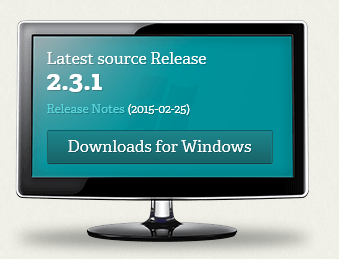
2.  Click on "Download for Windows" if you are using Windows, or "Downloads" if you are using other OS.  After you click on the button, save the download to a location on your desktop.


3.  Double click on the Git, .exe file that you've just downloaded


4.  Click "Next" on the welcome screen


5.  Click "Next" to accept the license screen


6.  Click "Next" to accept the path, or use the "Browse" button to choose a different path.


7.  Select the following components and then click "Next"


8.  Click "Next" to accept the "Start Menu Folder" name


 9.  Select "Use Git from Windows Command Prompt", then click "Next"


10.  The program will install automatically, wait for it to finish


11.  Click "Finish" to complete the installation


12.  Now to test that install is successful, open up a command line and type in the following command to display the version of "git" that is installed in your machine

"git version"


Tuesday, June 30, 2015

Create .gitignore for Visual Studio


One of the first thing you have to do when you are creating a git repository is to create a .gitignore file that tells git to ignore the files specified in the .gitignore file.  Since Visual Studio produces all kinds of files it could take a while if you tried to create a .gitignore file from scratch.  Well there's a website that will generate a .gitignore file for you.  It's called gitignore.io  all you have to do is type in the IDE in this case it's VisualStudio without any spaces and the website will generate a .gitignore file for you automatically.

Step-By-Step Instructions:


  1. Type in the URL https://www.gitignore.io 


2. In the text box, type in "VisualStudio" without the double quotes


3.  Then click on the "Generate" button


4.  That's it, a .gitignore file is generated for you, save the file and put it at the root of your Visual Studio repository and you will ensure that the only thing that will get committed are the source codes


Note:  You can remove or add files exclusions from the generated file.  The comments are there as guide for you on what is being ignored.


Friday, March 6, 2015

Installing Git For Windows

Git is an open sourced version control system, that a lot of open source projects have a repository on.
To install Git on Windows follow the directions in this blog.

1.  Go to http://www.git-scm.com
2.  Click on "Download for Windows" if you are using Windows, or "Downloads" if you are using other OS.  After you click on the button, save the download to a location on your desktop.


3.  Double click on the Git, .exe file that you've just downloaded


4.  Click "Next" on the welcome screen


5.  Click "Next" to accept the license screen
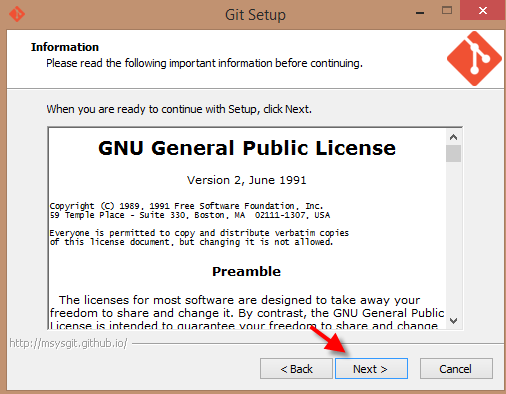

6.  Click "Next" to accept the path, or use the "Browse" button to choose a different path.


7.  Select the following components and then click "Next"


8.  Click "Next" to accept the "Start Menu Folder" name


 9.  Select "Use Git from Windows Command Prompt", then click "Next"


10.  The program will install automatically, wait for it to finish


11.  Click "Finish" to complete the installation


12.  Now to test that install is successful, open up a command line and type in the following command to display the version of "git" that is installed in your machine

"git version"